New windows in Internet Explorer opening not full screen

Is Internet Explorer driving you nuts by opening up in a smaller window, offset from center on your screen, when it should be opening full-screen?

Yes, this is a really annoying “feature” in IE, and it is not easy to figure out how to get IE to stop opening windows in this small mode. This often happens if you click the “restore down” window and resize the window smaller. From that point on every window you open will be in this new small size.

How to fix this…?

1. Close all existing IE windows
2. Open a single new IE window. Maximize the window and go to any web site like www.google.com
3. Make sure the site loads fully.
4. Click the “Restore down” icon. This is the second button from the right in the top right of the IE window. This will pop the window down to the smaller size.
5. Now grab the window top bar and move it up to top of the screen and grab the bottom right and expand out the window to manually resize it to full size on your monitor.
6. Close this window.
7. Open IE again.
8. RIGHT click any link and “open in new window”. New pages should now open full-size.

Serve static content from a cookieless domain – Google Page Speed Tip

Ok, so you are using the Google Page Speed plugin for Firefox and you can’t figure out how to clear the “Serve the following static resources from a domain that doesn’t set cookies” issue so that you score better…

First off, since we are using the Windows platform for our hosting, this entire post is making a big assumption you are too. If you are using some other platform or don’t have complete console or remote desktop access to your server, you can read on, but you’ll need to figure out this on your own.

The main thing you need to do is to REGISTER A NEW DOMAIN – or use one you’ve never used before – to specifically use for image and non-html things like JS and CSS.

If the web site is at this-is-my-site.com you should register this-is-my-site-static.com or something similar. YOU MUST register or use a completely different domain name than the base site.

Why is this? Because the way browsers store and cache cookies locally, even if you create a subdomain of your existing site, like static.this-is-my-site.com, the Google Page Speed score will still detect that that domain accepts cookies, and this will not suffice. Pick a domain that you’ve never used or hosted before and this will work fine. Keep in mind your web site visitors are NEVER going to know your images on are a different domain unless they start poking around in your HTML source code anyways.

This specific information will reference IIS 7.0, so if you are on an earlier version feel free to comment and I will see if I can pass along the settings.

So now that you’ve got your new and unused domain name ready to do, setup a new web site instance on your web server, preferably the latest OS such as Windows 2008 server.

DO NOT START the site after you set it up. Bind the site IP to the new domain name.

Bind it to the NO-MANAGED-CODE Application pool.

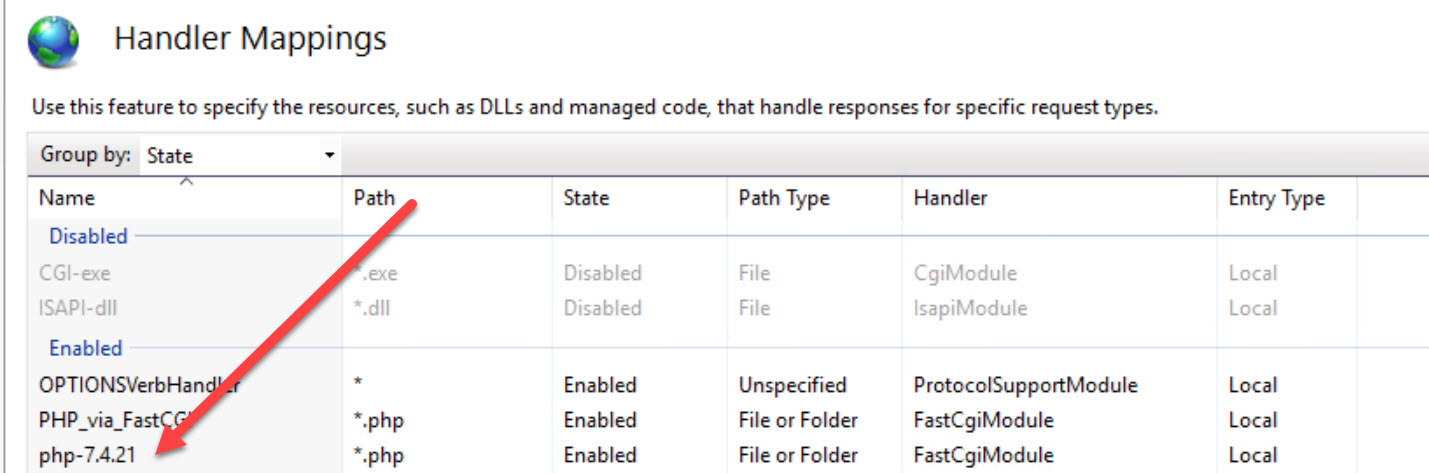
On this specific site you created, double click HANDLER MAPPINGS. Remove ASP, ASP.NET, PHP or any other script based handlers that appear here. ISAPI ones are OK to keep.

Start the web site instance.

You’ll now need to copy over your images to the new domain (via FTP or however).

Copy the following types of files

  • All images – png, gif, jpg
  • CSS files
  • favicon.ico file
  • JS files

In your HTML on your base site you’ll need to update ALL the image, CSS, JS, Favicon, and JS references to point to the server. You should know how to do this if you can get this far. We are talking HTML 101 here… :)

If you’ve done this all properly, re-run the Google Page Speed plugin and it should remove these issues off your task list and change them to “green checks”. If it doesn’t you probably have some script engine enabled on the domain and it is setting a cookie automatically (like ASP.NET). Remove it off that site.

Here at Amixa we use a dedicated server with all the script engines (ASP, ASP.NET, etc.) completely disabled to “serve cookieless domain content”.

Getting your old Logitech webcam videos working on Windows 7 x64

So, do you have old AVI videos from an old USB or Parallel Logitech web cam? I did, and I happened across them recently – but they won’t play in Windows 7 because the CODEC’s cannot be found.

These videos dated to around 1998 and I wanted to watch them, however I could not figure out how to get the video working under Windows 7 x64 due to the obvious codec issues. After much research, I found out that the correct codecs to play my videos – specifically the Intel Indeo IV41 codec – are indeed present in Windows 7, but they are not hooked into the registry.

(NOTE – ONLY FOR Windows 7 x64). You’ll need a different solution for x86 Windows 7. ** use at your own risk, of course.

Download This File, unzip and DOUBLE CLICK to load the settings into your registry. A reboot may be needed.

When you are done, double click on the AVI files from your old Logitech webcam and the videos should play fine!

I hope this saves some of you time – it took me a few hours to track this down.

ASPDOTNETSTOREFRONT Excel Import error Ignoring bad/duplicate CategoryRef

If you are trying to do a bulk product import into ASPDNSF and come across the following error

Ignoring bad/duplicate CategoryRef, Name=

This is usually solved in one of two ways.

First, you have a malformed XPATH (category) field. The proper syntax is /category name 1/category name 2/subcategory name 1

for example, /Sports/All types of balls/Basketballs

NOTE: You do not need to manually create the categories in the admin interface. If you’ve formed the categories properly as above, the system will auto-create the categories during the import process. This is a real timesaver.

Second, this import error message can also be triggered if the “PRODUCT SKU’s” are duplicated in the import file. Please check your import data carefully to ensure that you don’t have duplicate SKU numbers for the same category (or at all). Good business practices dictate that you have a unique sku for each product.

First access on ASPDOTNETSTOREFRONT on a W2K8 R2 server…

Ok, so you’ve completed your install of ASPDNSF 9.x onto a Windows 2008 R2 server, and when you first try to access the domain, you get this error:

Server Error in ‘/’ Application.


Configuration Error

Description: An error occurred during the processing of a configuration file required to service this request. Please review the specific error details below and modify your configuration file appropriately.

Parser Error Message: Could not load file or assembly ‘System.Core, Version=3.5.0.0, Culture=neutral, PublicKeyToken=b77a5c561934e089′ or one of its dependencies. The system cannot find the file specified.

Source Error:

 Line 244:        <add assembly=”System.Configuration, Version=2.0.0.0, Culture=neutral, PublicKeyToken=B03F5F7F11D50A3A” />Line 245:        <add assembly=”System.Configuration.Install, Version=2.0.0.0, Culture=neutral, PublicKeyToken=B03F5F7F11D50A3A” />

Line 246:        <add assembly=”System.Core, Version=3.5.0.0, Culture=neutral, PublicKeyToken=B77A5C561934E089″ />

Line 247:        <add assembly=”System.Data, Version=2.0.0.0, Culture=neutral, PublicKeyToken=B77A5C561934E089″ />

Line 248:        <add assembly=”System.Data.DataSetExtensions, Version=3.5.0.0, Culture=neutral, PublicKeyToken=B77A5C561934E089″ />

Source File: C:\Websites\www.whatevermysiteisnamed.com\www\web.config    Line: 246

Assembly Load Trace: The following information can be helpful to determine why the assembly ‘System.Core, Version=3.5.0.0, Culture=neutral, PublicKeyToken=b77a5c561934e089′ could not be loaded.

 WRN: Assembly binding logging is turned OFF.To enable assembly bind failure logging, set the registry value [HKLM\Software\Microsoft\Fusion!EnableLog] (DWORD) to 1.

Note: There is some performance penalty associated with assembly bind failure logging.

To turn this feature off, remove the registry value [HKLM\Software\Microsoft\Fusion!EnableLog].


Version Information: Microsoft .NET Framework Version:2.0.50727.4927; ASP.NET Version:2.0.50727.4927

What to do???

This is an easy fix. 

Go to Start-> Administrative Tools -> Server Manager – > Features ->Add Feature and ADD .NET Framework 3.5.1 Features

ASPDOTNETSTOREFRONT Proper Permissions under Windows 2008 server

I hope this is of help to anyone trying to get a current version (meaning 8.x or 9.x) of ASPDOTNETSTOREFRONT running on a Microsoft Windows 2008 server, or Windows 2008 R2 Server. One issue that we have experienced that is not documented or explained well are the permissions for certain directories you need to configure for the app to properly run. The official documentation from ASPDNSF is here, but I have not had any success in my setups getting the application to function properly. When I use the settings below the app works properly and can accept image uploads from the admin interface, etc.

You need to grant the following permissions to the directories below:

AddIns
Images
web.config (file in root directory)

{servername}\IIS_IUSRS (Read, Write, and Modify access)

so if your server box name is webserver1, you would grant webserver1\IIS_IUSRS the Read, Write, and Modify access permissions.

The official documentation from ASPDNSF specifies “Network Service” instead of IIS_IUSRS, but I have never been able to get the app to work properly using that permission.  It does seem to work properly with the permission above.

DISCLAIMER: Please do these AT YOUR OWN RISK. We accept NO responsiblity for the integrity of your server. I am just relaying my experiences with the installation and use process of this ASPDNSF application.

Exporting IIS 7 web site settings…

Well, now that Microsoft is shipping Windows 2008 Server R2, we need to know how to (easily) migrate a site from one W2K8R2 machine to another, right?  Microsoft didn’t exactly make this an easy process because there is no built-in method in the IIS 7.0 GUI to do the site export.  So to do the export (and import on another IIS 7 box), you need to drop to a command line and run the following commands:

EXPORT site from IIS 7 (Windows 2008 R2 server)

%windir%\system32\inetsrv\AppCmd.exe LIST SITE "www.yoursitenamehere.com" /config /XML > D:\mysitesconfiguration.xml

IMPORT site into IIS 7.0 (after you have created the above export XML file…)

%windir%\system32\inetsrv\AppCmd.exe ADD SITE /IN < D:\mysitesconfiguration.xml

The last step is to create a new application pool and assign this IMPORTED site to the new application pool.

NOTES:  It is very important that you run this from a command prompt, not the “start bar box” on the Start Menu in Windows 2008 R2 Server.  Instead run the command prompt as Administrator and do this command by keying it in, or create a batch file and execute it as the administrator on that machine.

TS Gateway – the poor man’s GotoMyPC

Want to connect into your business network, but don’t want to spend the $$$ paying for multiple GoToMyPC accounts?  Well, if you have control over your firewall, a static IP, Windows Server 2008 or later on your business server, and enough technical expertise, you can likely use Terminal Services Gateway service (TS Gateway) to connect into your computer (or any modern Windows OS computer on your LAN), for free!

  1. Start by reading the official Microsoft TS Gateway step-by-step guide.  Be aware even for me, a tech geek, that contains a pretty heavy duty dose of tech-babble.
  2. Configure your Windows 2008 server by reading these directions
  3. Configure each remote client (like your laptop) by reading this

Rather than re-hash all the above content, I will point out a few areas in which you may experience problems configuring  TS Gateway.

  • Configure a DNS record for your domain and point it at the office IP address, such as tsgateway.yourdomain.com point to your office IP.  If you don’t know your office IP, look at your firewall.  You will need a static IP or the capability to use a Dynamic IP address tracking service. If you don’t know what I am talking about already, this is not for you- use GoToMyPC!
  • While setting up the server, just create a “self signed” SSL certificate, and make sure you use the domain name you configured above to generate the self signed SSL, such as tsgateway.yourdomain.com
    • You will need to install this self-signed SSL into BOTH the server and client Trusted Root Certification Authorities store (the above links detail this process).
  • After the TS Gateway setup is complete, go check the IIS server BINDINGS for your default site and make sure the SSL certificate from above is properly installed onto your site.
  • These self-signed SSL certs expire after 6 months, so every 6 months you’ll need to generate a new one using the TS Gateway manager, or you can obtain a low cost SSL from GoDaddy or somewhere else that you can use as well. My advice is to just use the free self-signed ones.  If you are using self-signed ones just setup an Outlook recurring calendar event to remind you a week before each 6 month period.
  • Firewall configuration.  This is the most important part of the whole setup.  If the traffic can’t even get into your network, none of the above will work.
    • In general this is a two part process.
      • First, configure your NAT mappings, to map inbound port 443 TCP to your internal server IP address.
      • Second, add a rule to permit HTTPS traffic from anywhere to your internal server IP and HTTPS port 443
    • If you have properly configured your firewall, and imported in both the client and server SSL cert, go to an outside connection with your laptop (like a coffee shop) and go to https://tsgateway.yourdomain.com and see if you get the IIS 7.0 server multi-language single page splash screen.  If yes, then your TS Gateway setup is one step closer to working.
  • Enable all logging via the AUDITING tab.  These events will log to the Event Viewer in the area below.  This is extemely handy for troubleshooting things.

TS Gateway getting knocked offline due to IIS Restart

If you restart your IIS server at anytime, your TS Gateway service will get knocked offline.  As of June 27, 2010 this is a documented issue with Windows Server 2008 and later.

If you see an error in the TS Gateway event log that looks like this:

The TS Gateway service is shutting down. To diagnose possible causes for this problem, verify whether the following services are installed and started: (1) World Wide Web Publishing Service (2) Internet Authentication Service (IAS) (3) RPC/HTTP Load Balancing Service. Also, check Event Viewer for Network Policy Server (NPS) and IIS events that might indicate problems with NPS or IIS.

or if your client computer (laptop) that is trying to connect from the outside, gets an error like this

Remote Desktop Disconnected
----------------------------------------------
This computer can't connect to the remote computer.
Try connecting again. If the problem continues, contact the owner of the remote computer or your network administrator.

You need to go to the service manager and make sure the following services are started:

  • Terminal Services Gateway
  • RPC/HTTP Load Balancing Service

Using SPF on your domains…

It’s a good idea if you have a domain – and you have access to your DNS server, that you setup and use (properly) SPF records.  SPF = Sender Policy Framework.  This is an an e-mail validation system designed to prevent e-mail spam by addressing a common vulnerability, source address spoofing.  Here at Amixa, we use SPF records on all of our domains that send email, just to add another layer of anti-spam protection for our clients.

In recent weeks we’ve noticed a sharp increase in spoofed “from” email addresses attached to bulk email sent by spammers.  The “Amixa Sales” email address has been spoofed by some senders and any receipient’s ISP that uses SPF lookups, are properly rejecting the spam messages because the email messages do not originate from our email server.  I am sure other people are getting spam emails using our forged email address, but that is just the way things happen on the internet.  Some people are good, and others aren’t!

For more reading, learn about SPF here

To build SPF records for your domains using an easy to use Wizard, click here

To check your SPF records after you have them in place, click here

SSL Weak Encryption Algorithms – how to disable them under IIS

Chances are if you are reading this you’ve failed a “Trustkeeper Scan” – with “Low severity” – due to having weak SSL encryption algorithms enabled on IIS.

It’s pretty easy to solve this, but if you read the microsoft KB article it looks pretty complicated.

Launch regedit and go to this key:

HKEY_LOCAL_MACHINE\SYSTEM\CurrentControlSet\Control\SecurityProviders\SCHANNEL\Ciphers

You basically want to disable everything that has less than 128 bit encryption.  On one of my servers, the ones with red arrows below need to be disabled:

CLICK FOR LARGER IMAGE

CLICK FOR LARGER IMAGE

So on each one of these, you want to “Right click”, add a DWORD, name it “Enabled” and set the Hex value to 00000000  (eight zeros).

Repeat for each one that has less than 128 bit length, and then restart your server.

You probably also need to reschedule a security scan so that your changes can be verified, and as always, please double check your SSL protected site with at least two different web browsers and make sure you can get into SSL mode with them both on your site.